Workspaces
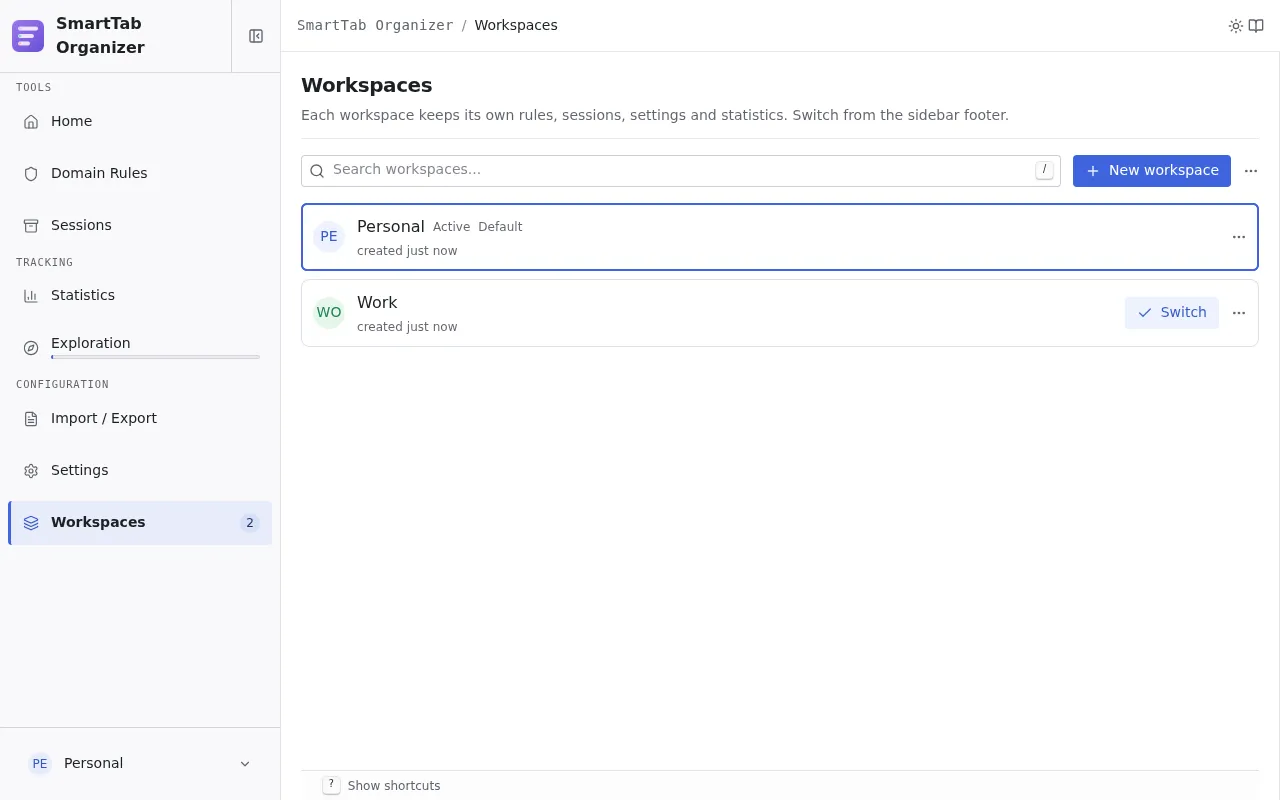
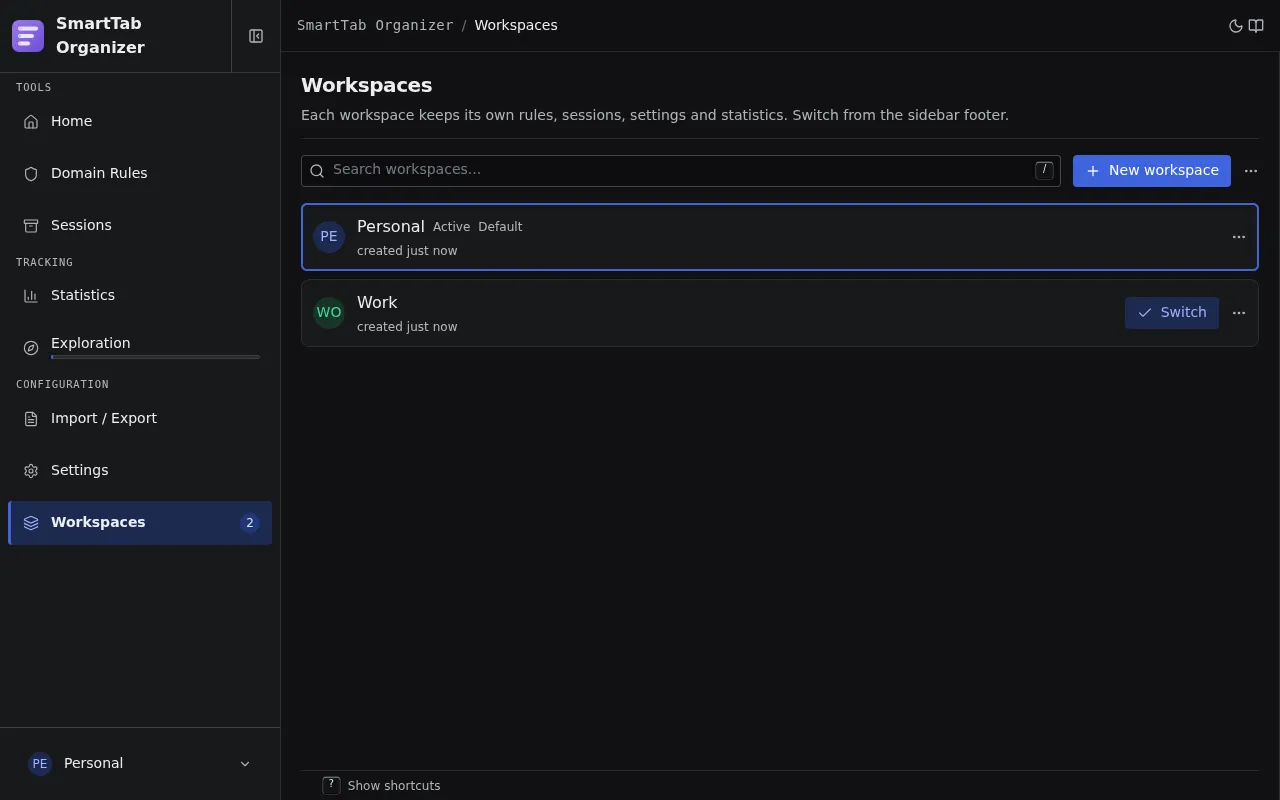
A workspace lets you separate two usage contexts without letting their configurations mix: work and personal, project A and project B, client environment and R&D environment. Each context keeps its rules, its sessions, and its counters.
What a workspace scopes
Section titled “What a workspace scopes”| Data | Scoped? |
|---|---|
| Domain rules | Yes |
| Sessions (pinned, active, archived) | Yes |
| Statistics | Yes |
| Categories | No, shared |
| Global settings (notifications, language, theme, default restore action) | No, shared |
| Regex presets and built-in packs | No, shared |
The categories are provided by the extension (14 built-in categories, see Categories and packs) and identical across all workspaces. A rule exported from one workspace to another therefore keeps its emoji and its category label. Its group color, a rule-level field, is also preserved.
Create a workspace
Section titled “Create a workspace”- On the Workspaces page, click New workspace.
- Type a name (1 to 40 characters, unique among existing workspaces).
- Pick an accent color (default
jade). 20 Radix colors are offered; neutrals (gray, mauve, slate) and metallics (bronze, gold) are excluded because they read poorly as an accent. - The preview at the top of the form shows the avatar and color as they will appear.
- Confirm. The workspace shows up in the list, ready to be activated.
Creating a workspace does not make it active automatically. To switch to it, use the Switch button on its card.
Switch the active workspace
Section titled “Switch the active workspace”The WorkspaceSwitcherDropdown lives in the Options footer. Click it to open the list, then pick the target workspace.
The PopupWorkspaceSwitcher mirrors the same mechanism in the popup. Handy to switch without opening Options: the list of profiles and the restore buttons follow the change immediately.
From the keyboard
Section titled “From the keyboard”Three key sequences cycle through workspaces without going through the switcher, from the Options page or the popup:
| Sequence | Effect |
|---|---|
W then N | Switch to the next workspace |
W then P | Switch to the previous workspace |
W then L | Go back to the last used workspace |
To switch from anywhere in the browser, three global commands also exist:
switch-workspace-next, switch-workspace-prev and switch-workspace-last.
They are bound to no key by default; you assign the shortcut of your choice from
chrome://extensions/shortcuts.
See Keyboard shortcuts for the full list.
When you switch workspace:
- the Rules page only shows the rules of the target workspace;
- the Sessions page only shows the sessions of that workspace;
- the popup and the home page only show the profiles of the target workspace;
- statistics reflect the counters of the target workspace;
- global settings do not change, they are shared.
The active workspace is persisted in browser.storage.local: the next time you open the browser, you start from the last workspace used.
Rename or change the color
Section titled “Rename or change the color”Click the Edit icon (pencil) on the card. The same form as creation opens, prefilled. The same constraints apply (1 to 40 characters, uniqueness).
Delete a workspace
Section titled “Delete a workspace”- On the workspace card, click the Delete icon (trash).
- A dialog reminds you that all rules, sessions, and statistics of the workspace will be lost.
- Confirm to perform the deletion.
Profiles in the popup
Section titled “Profiles in the popup”When a session is pinned in a workspace, it is projected as a profile in two places:
- the popup (
PopupProfilesListcomponent); - the home page (
PinnedSessionsSectioncomponent).
Profiles are scoped per workspace: switching swaps the list shown immediately. For the restore shortcuts, see Sessions, pinned sessions.
Export or import a workspace
Section titled “Export or import a workspace”Exporting a workspace produces a complete JSON archive (rules, sessions, settings) that you can reimport into another Chrome profile or share with a teammate. See Import / Export.