Sessions
A session is a snapshot of tabs you can reopen later, with their groups, names, and URLs. Sessions are scoped per workspace and organized in three buckets: pinned, active, archived.
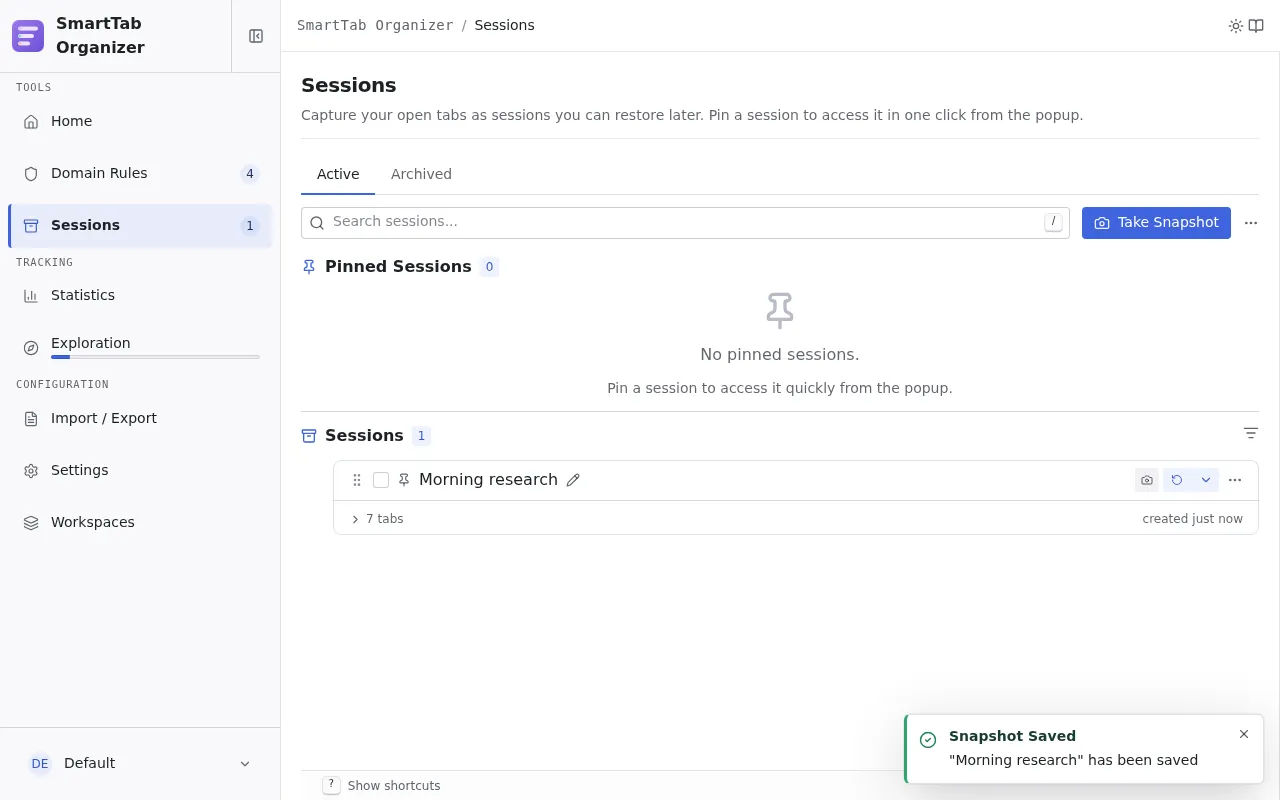
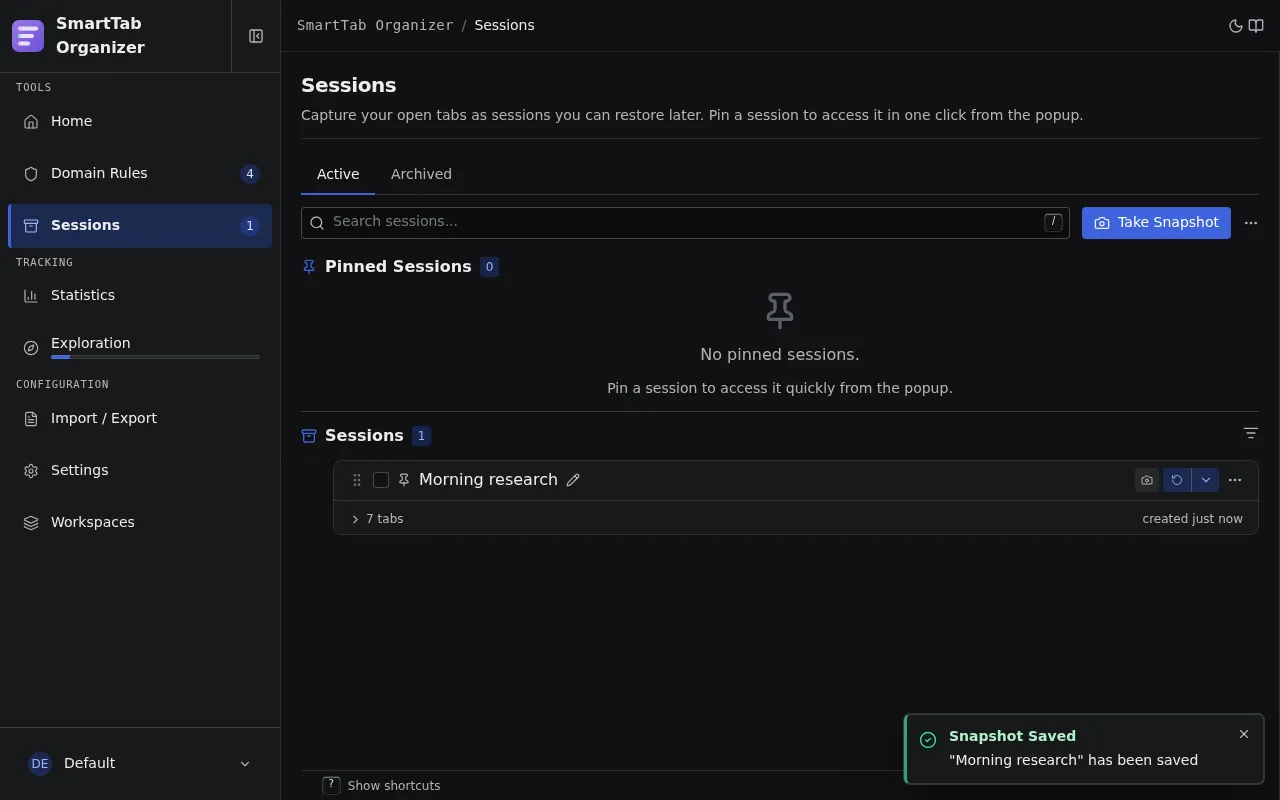
The three buckets
Section titled “The three buckets”| Bucket | When to use |
|---|---|
| Pinned | Contexts you come back to regularly (client project, dev environment, ongoing research). Projected in the popup and the home page as profiles. |
| Active | Everyday sessions: an ad-hoc capture before closing the browser, a snapshot of an ongoing search. |
| Archived | Sessions set aside without deleting them. Out of sight from the popup and the home page. |
The Archived sub-tab of the Sessions page is reachable via #sessions/archived (deep link) or via the TabNav at the top of the page.
The session card
Section titled “The session card”In every bucket, a session is shown as a card. Pointing at a card (or focusing it with the keyboard) opens a HoverCard that summarizes the session without restoring it: capture date, number of tabs, category, and the note when there is one. It is the fastest way to recognize a session before acting on it.
Take a snapshot
Section titled “Take a snapshot”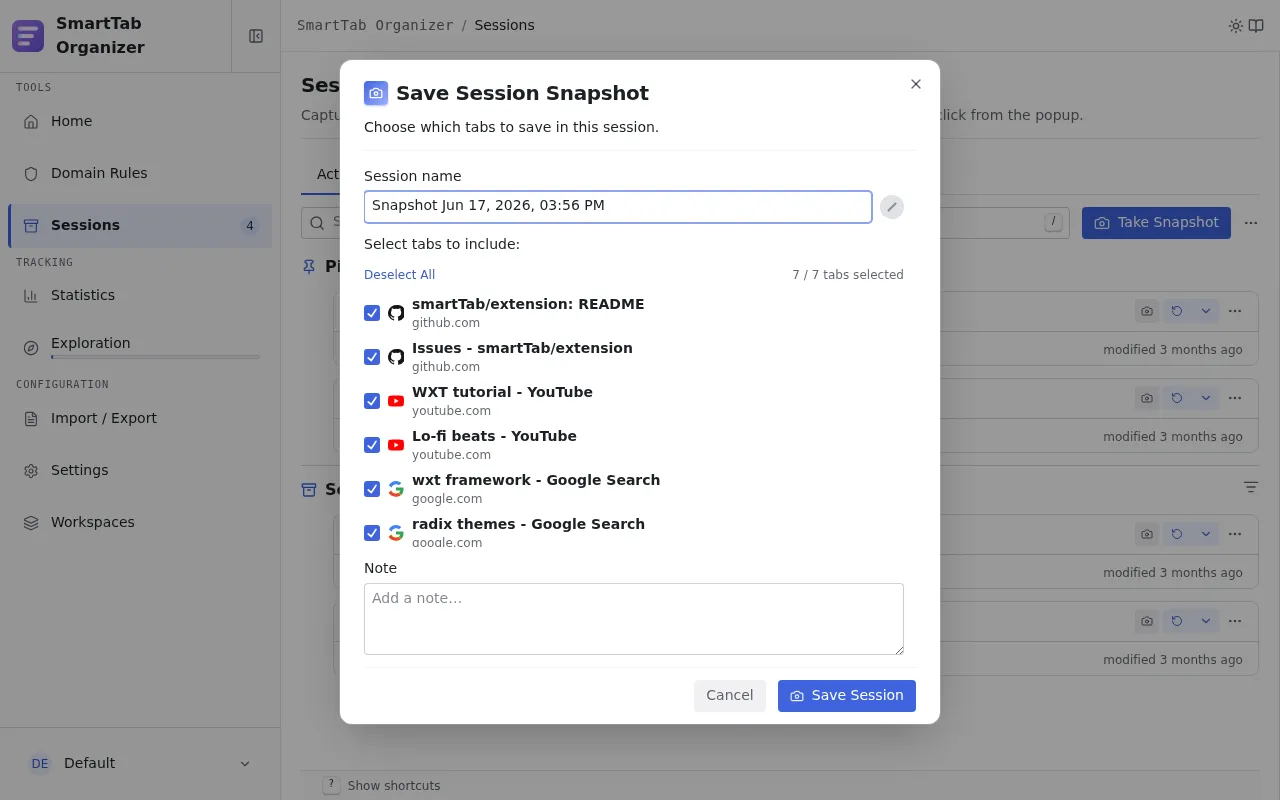
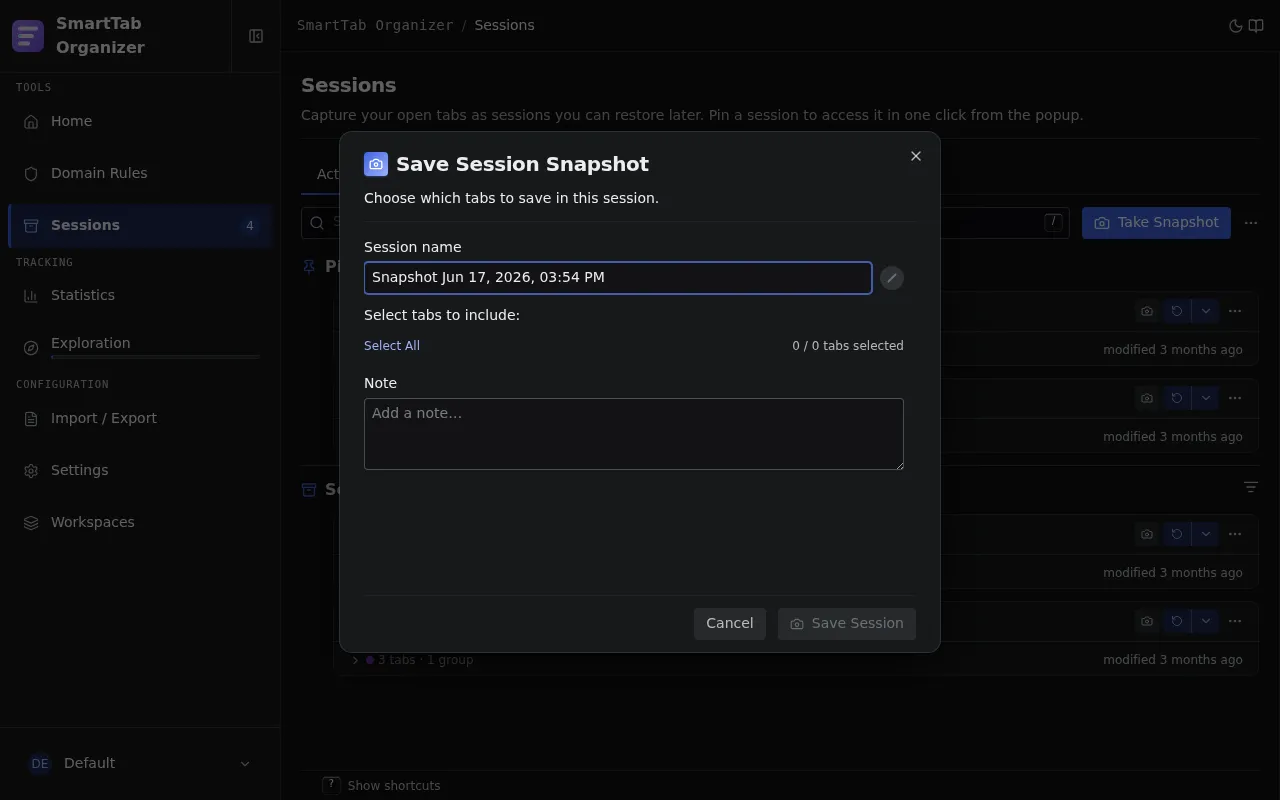
From the home page, the popup, or the Sessions page, click Take Snapshot (shortcut S on the home page).
- Name: a session name prefilled with the date and time. Editable.
- Tab selection: by default every tab of the active window. Uncheck the tabs to leave out.
- Category (optional): adds an emoji to the session. Handy to tell several pinned profiles apart visually.
- Note (optional): free text stored with the session, visible on restore or on export.
- Confirm. The session appears immediately in the Active sessions list.
Restore a session
Section titled “Restore a session”Four restore targets are available. With a session or profile focused:
| Target | Shortcut | Effect |
|---|---|---|
| Restore in current window | Shift + R | Adds the session tabs to the currently foregrounded window. |
| Restore in new window | Alt + Shift + R | Opens a new dedicated window. |
| Replace tabs in current window | Alt + R | Closes the current window’s tabs and restores those of the session in their place. |
| Customized restoration | R | Opens the restore wizard and surfaces any conflicts. |
A click or pressing Enter uses the default action configured in Settings.
Conflict wizard
Section titled “Conflict wizard”When tabs from the session are already open in the target window, the wizard offers a per-tab resolution:
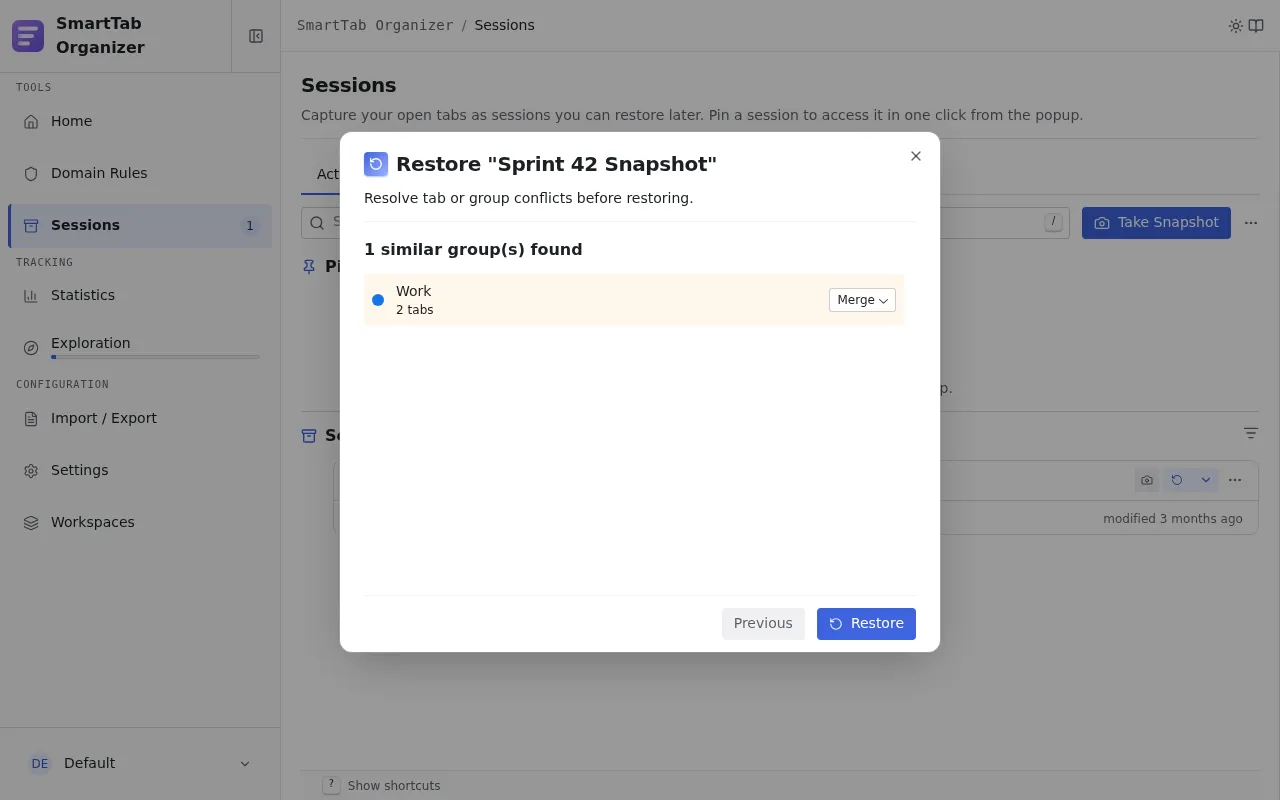
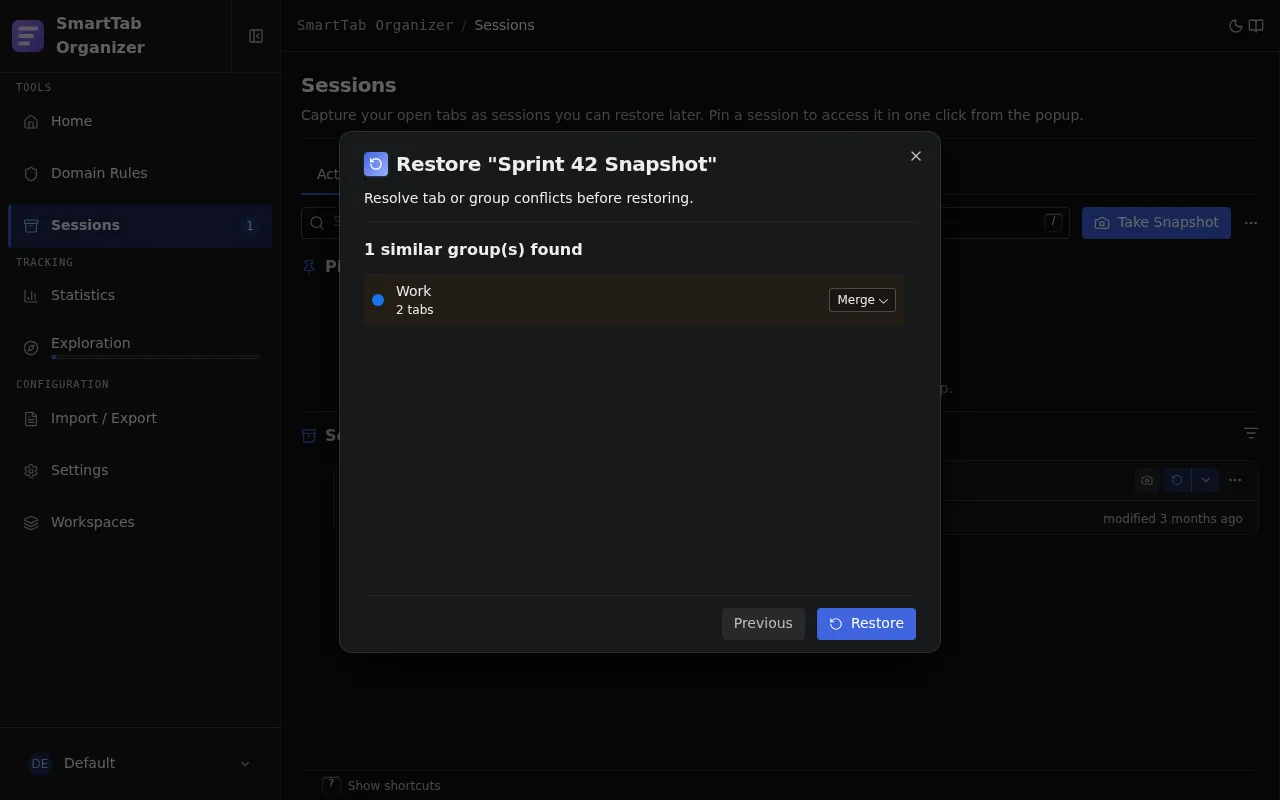
| Action | Effect |
|---|---|
| Restore | Adds the new tab next to the existing one. You keep both. |
| Skip | Skips this tab. The currently open version is left untouched. |
| Replace | Closes the existing tab and restores the session’s one in its place. |
Edit a session
Section titled “Edit a session”Click the Edit icon on a session card, or use E on the focused card. The session editor lets you:
- Rename the session.
- Delete individual tabs.
- Reorder tabs between groups or regroup them via drag and drop.
- Rename a group inside the session.
- Change the category or the note.
Changes are applied immediately. The expanded or collapsed state of each group is remembered across openings.
Refresh a session
Section titled “Refresh a session”The Refresh button (shortcut U on the focused session) replaces the session content with the current state of the current window, while keeping the name and category. Useful to update a pinned profile after a work session without recreating it.
Pinned sessions
Section titled “Pinned sessions”Pinning promotes a session to a profile: it shows up in the popup and on the home page of the active workspace.
- On the session card, click the Pin icon (or press
Pwhen focused). - The session moves to the Pinned section at the top of the page, and appears in the popup and on the home page.
Pinning changes neither the name nor the content, only the status and the placement. Click the icon again to unpin.
Category to tell profiles apart
Section titled “Category to tell profiles apart”Assigning a category to a pinned session surfaces its emoji next to the name in the popup. Handy when you have several profiles and want to tell them apart at a glance.
Archive
Section titled “Archive”The Archived sub-tab holds sessions you want to keep without seeing every day. An archived session does not appear in the popup or on the home page, but stays accessible and restorable from the Sessions page.
Archive a session
Section titled “Archive a session”On the card of an active session, open the context menu and click Archive. The session leaves the Active list immediately and shows up in Archived. A pinned session must be unpinned first to be archivable.
Unarchive
Section titled “Unarchive”In the Archived sub-tab, click Unarchive. The session moves back to Active. The session’s last update date is preserved (archiving is not treated as a content change).
Deep link
Section titled “Deep link”The URL chrome-extension://[id]/options.html#sessions/archived opens the Archived sub-tab directly. You can bookmark it to dig up an old session.
Filter and sort
Section titled “Filter and sort”The headers of the Active and Archived sections (not the Pinned section) carry a view button that opens a sort and filter menu. Like for rules, it only affects how the section is displayed.
| Setting | Options |
|---|---|
| Sort | Manual order, by date, by last restore, by category. Ascending or descending. |
| Filter | By category. |
Sorting by last restore relies on the timestamp recorded each time the session is restored. The view is remembered independently for the Active and the Archived section, and separately for each workspace.
Search
Section titled “Search”The search bar above the list filters by session name. A deep search is available too: it also looks at the captured tab titles, which helps you find a session by one of its contents.
Multi-selection and bulk actions
Section titled “Multi-selection and bulk actions”To act on several sessions at once, tick the checkbox on each card you want. A bulk actions bar then appears at the top of the section, with a master checkbox (select all or none) and the actions that apply to the whole selection.
| Action | Effect |
|---|---|
| Export selected | Exports only the selected sessions to JSON. |
| Delete selected | Removes every selected session (with a confirmation). |
| Pin / Unpin selected | Promotes the selection to profiles, or demotes it. |
| Archive selected | Moves the selected active sessions to the Archived sub-tab. |
The available actions depend on the section: the Pinned section offers unpin, the Active section offers pin and archive. Export and delete are available everywhere.