Interface tour
SmartTab Organizer exposes two main surfaces: the popup, reachable from the toolbar, and the Options page, opened in a dedicated tab.
The popup on first launch
Section titled “The popup on first launch”Right after install, the popup shows an empty state: no rules configured, statistics at zero.
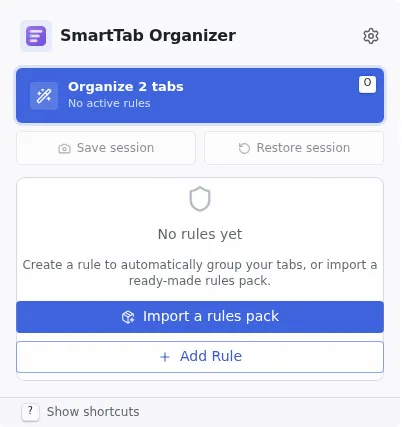
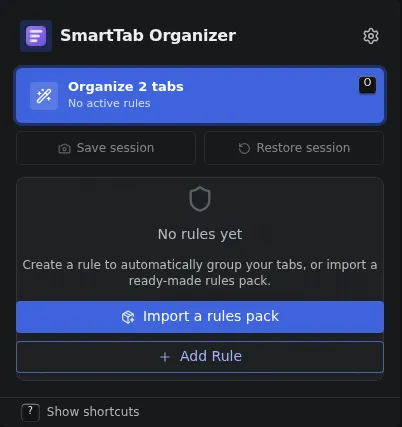
From this screen you reach the grouping and deduplication toggles, the global statistics, and the Options pages to configure the rest.
The popup is documented in detail in Guide: Popup.
The Options page
Section titled “The Options page”The Options page is built around six main sections, reachable from the left sidebar.
| Section | Purpose |
|---|---|
| Home | Landing page, aggregates pinned profiles, quick actions and mini-statistics. See The home page. |
| Domain Rules | Create, edit and organize the rules that drive grouping and deduplication. See Domain Rules. |
| Sessions | Capture a snapshot of the open tabs, edit it, or restore a previous one. Archived sub-tab for sessions set aside. See Sessions. |
| Workspaces | Isolate rules, sessions and statistics per context. See Workspaces. |
| Statistics | Track grouping and deduplication activity over time. See Statistics. |
| Import / Export | Back up or restore your configuration and sessions as JSON. See Import / Export. |
The Options page footer hosts a workspace switcher (WorkspaceSwitcherDropdown) that lets you change workspace at any moment. The same switcher is available in the popup.
The sidebar
Section titled “The sidebar”The left sidebar is the main navigation of the Options page: the six sections above are reachable from it, and the active section is highlighted. On a narrow window, the sidebar can be collapsed to give the content more room; expand it again from the same toggle. Its state is remembered across visits.
A theme toggle in the header switches between light and dark. The choice is remembered and applies to every surface of the extension (popup and Options page).
Badge on the icon
Section titled “Badge on the icon”When one of the two global toggles (grouping or deduplication) is off, a badge appears on the extension’s icon in the toolbar:
| Badge | Meaning |
|---|---|
| (none) | Grouping and deduplication active. Everything is running. |
| Orange G | Global grouping is off. |
| Orange D | Global deduplication is off. |
| Red X | Both toggles are off; the extension does nothing. |
The G and D badges share the same orange color: only the letter changes to tell you which toggle is off.
You can disable the badge from the Settings page.