Import / Export
The Import / Export page centralizes the three backup and restore flows. All files produced are JSON, validated on import by strict Zod schemas; nothing is written until you confirm.
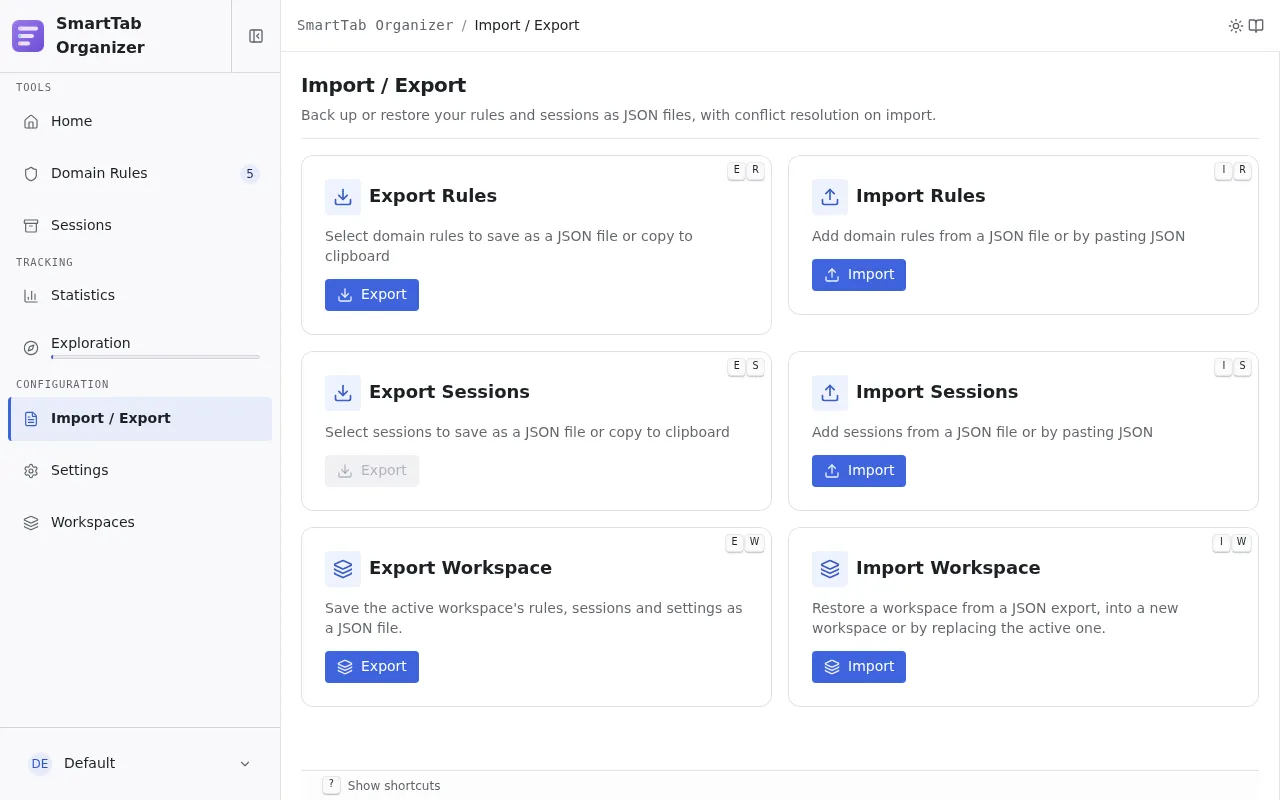
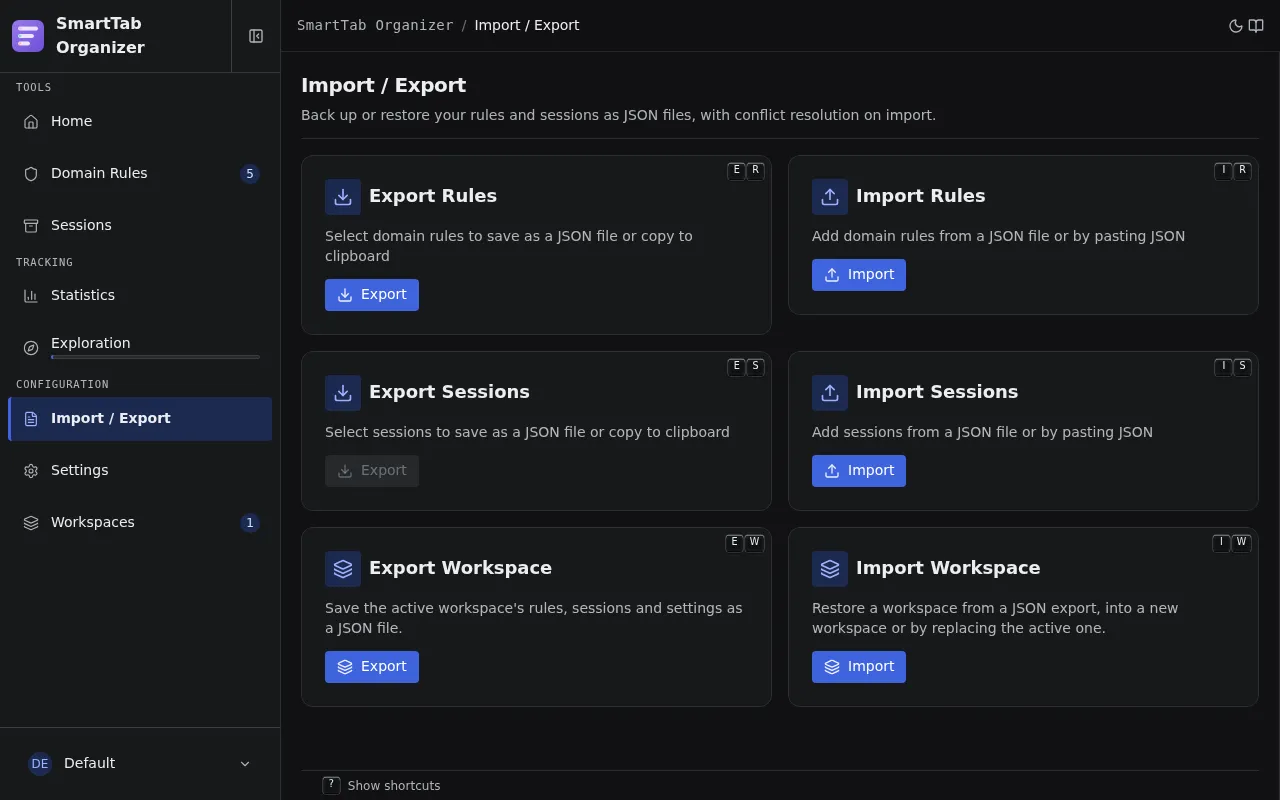
Export rules
Section titled “Export rules”From the Rules page or Import / Export, click the Export button. Every rule in the active workspace is serialized to JSON, copied to the clipboard, or downloaded as a .json file depending on the split button sub-action.
On the Rules page, check the rules to export through multi-selection. The Export Selected button in the bulk actions bar limits the export to the selection.
The format embeds, for every rule: domain, label, title and URL regexes, configuration mode, deduplication mode, ignored parameters, category, enabled state. No workspace identifier: a rule is portable across workspaces.
Import rules
Section titled “Import rules”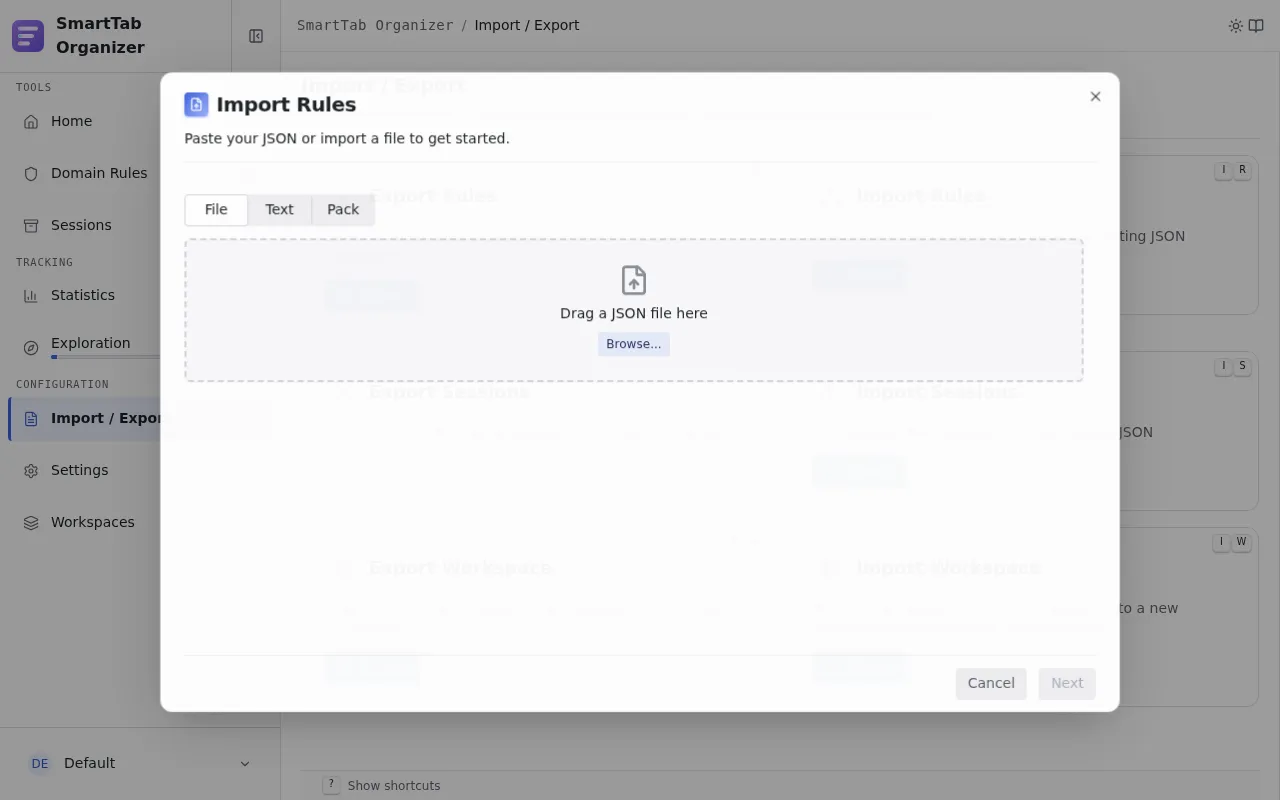
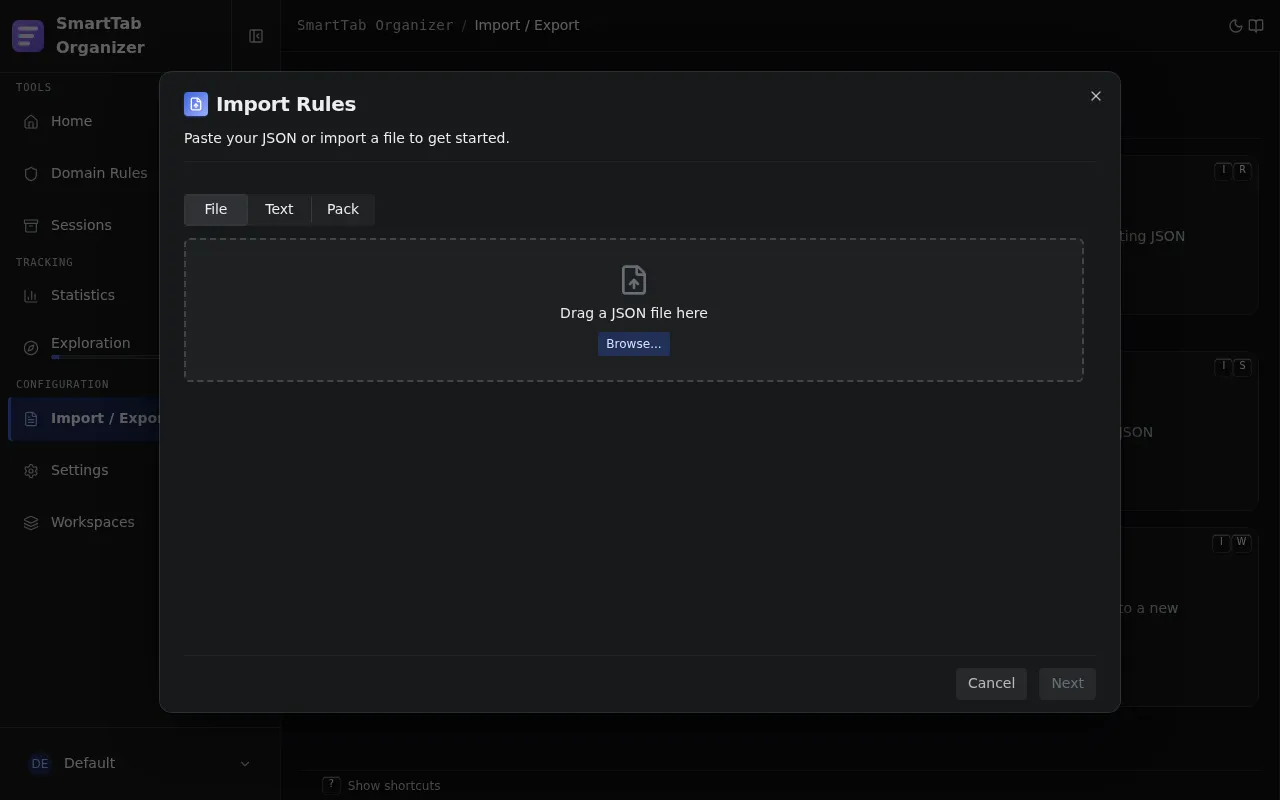
- Open the import wizard from the Rules page or from Import / Export.
- Pick the source: a JSON file (drag and drop or browse), pasted text, or the packs gallery (see Categories and packs).
- The wizard validates the structure and classifies each incoming rule.
Classification
Section titled “Classification”Each incoming rule is compared against the rules already in the active workspace:
| Status | Definition | Proposed action |
|---|---|---|
| New | No rule with this domain and this label in the workspace. | Added on import. |
| Conflicting | A rule exists with the same domain and label, but one or more properties differ. | Property-by-property resolution (see below). |
| Identical | A rule exists with the exact same values. | Skipped. |
Property-by-property resolution
Section titled “Property-by-property resolution”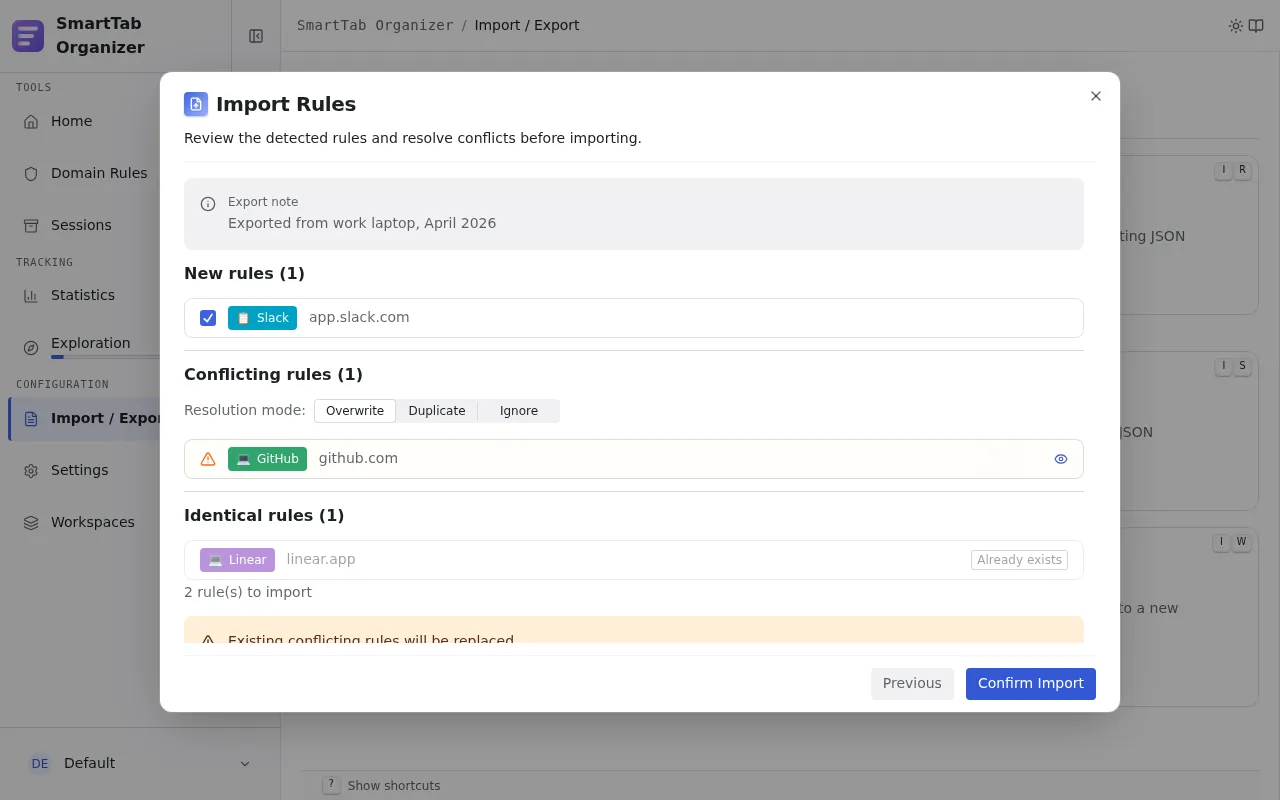
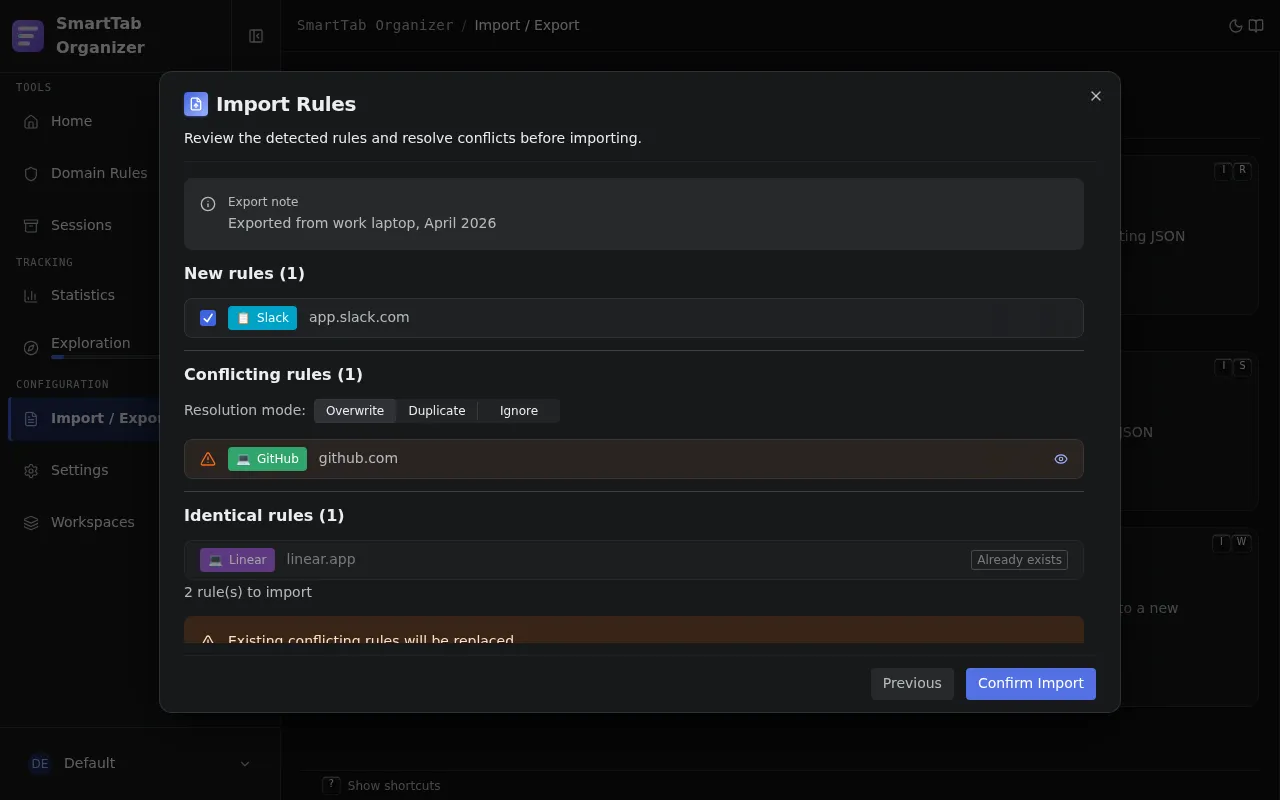
For each conflicting rule, the wizard shows a two-column table: Current and Imported. For every differing property, you pick which one to keep. A Use imported for all or Use current for all button settles the whole rule in one click.
Sessions
Section titled “Sessions”Export sessions
Section titled “Export sessions”The export wizard offers three checkboxes for the three buckets:
| Bucket | Checked by default |
|---|---|
| Pinned | Yes |
| Active | Yes |
| Archived | No |
Archived sessions are unchecked by default so a light export (a daily backup) does not drag along the whole archive. Check Archived for a complete export.
The export also exposes an optional Note field, embedded in the archive and shown on import.
Import sessions
Section titled “Import sessions”Same mechanism as for rules: pick the source (file, pasted text), Zod schema validation, classification into new / conflicting / identical based on name and content. Resolution is case by case: keep the existing version, overwrite, or add by suffixing the name.
Workspaces
Section titled “Workspaces”Export a workspace
Section titled “Export a workspace”Exporting a workspace produces a self-contained archive with the entire configuration of that workspace: rules, sessions, settings, and optionally statistics.
- From the Workspaces page or from Import / Export, open Export Workspace.
- The dialog shows a summary (rule count, session count).
- Options: Note (free text embedded) and Include statistics history (unchecked by default; counters are not essential to the transfer and can be considered personal).
- Confirm. The file produced follows the format
smarttab_organizer_workspace_{slug}.json.
The export always targets the active workspace. To export another workspace, switch to it first.
Import a workspace
Section titled “Import a workspace”- Open Import Workspace from the Workspaces page or from Import / Export.
- Pick the source (JSON file or pasted text).
- The dialog validates the structure and shows a summary (rules, sessions, statistics presence, optional note).
- Pick the import mode (see below) and confirm.
Import modes
Section titled “Import modes”| Mode | Behavior |
|---|---|
| Create a new workspace from this export | Creates a fresh workspace with the name and color provided by the archive. You can override the name in the Workspace name field before confirming. |
| Replace the contents of the active workspace | Adds the archive’s rules and sessions to the active workspace. Any conflicts (already-present IDs) are handled case by case. |
JSON format
Section titled “JSON format”Every archive is Unicode JSON, readable by eye. The schema for each archive type lives in src/schemas/importExport.ts. The schema used on import is intentionally relaxed (no form-level refinements), so it tolerates archives produced by older versions.